
Review the game
frame by frame.
Pin comments on sprite sheets, Rive files, 3D models, and video, then turn them into tasks.

Review each asset in its own format.
Models orbit, sprite sheets step frame by frame, and Rive files play. Each comment keeps the camera view, frame, or playback time it was pinned to.
How file review works
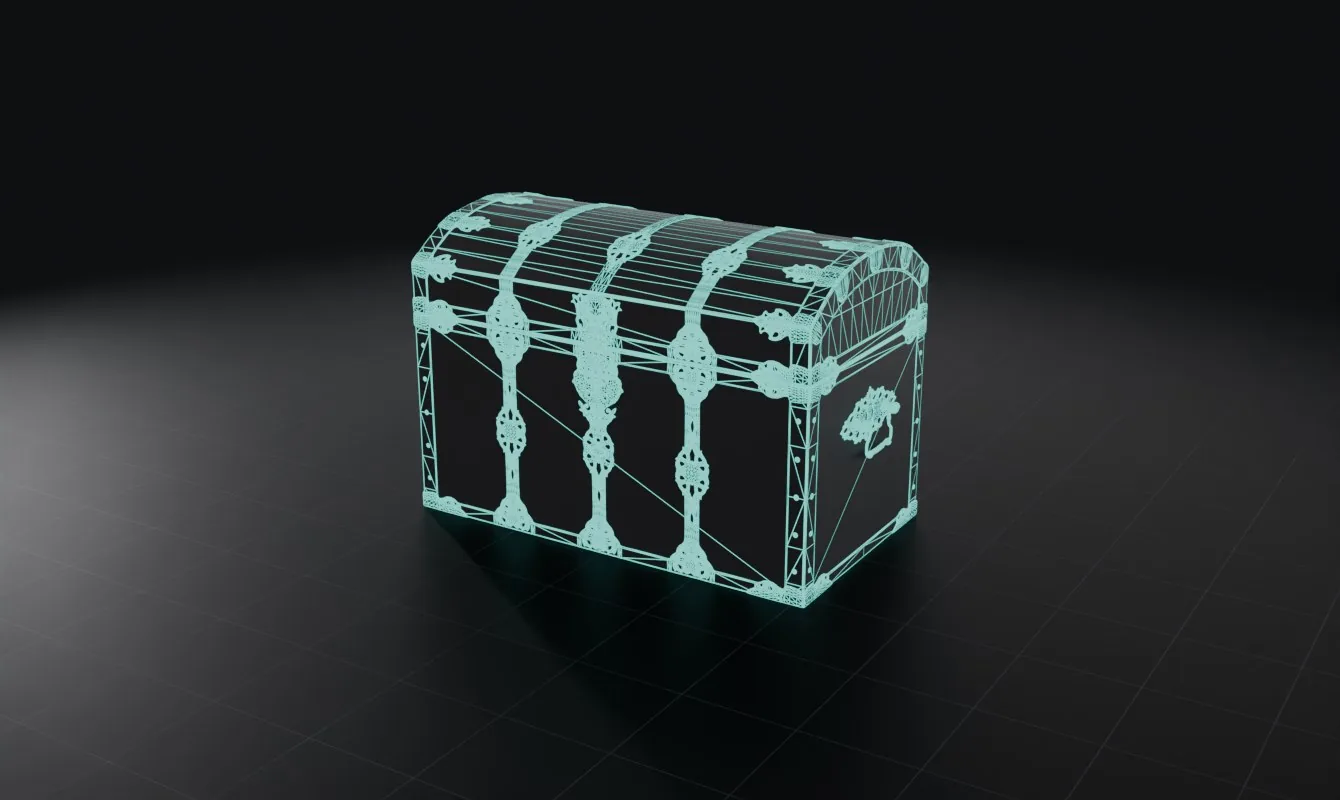
- Triangles
- 103.3K
- Vertices
- 68.5K
- Meshes
- 5
- Materials
- 1
- Textures
- 3
3D models
Orbit to the part you mean and pin it. Opening the comment later returns to the same camera angle.
Sprite sheets
Step through a clip one frame at a time. A comment stays on the frame you pinned it to.
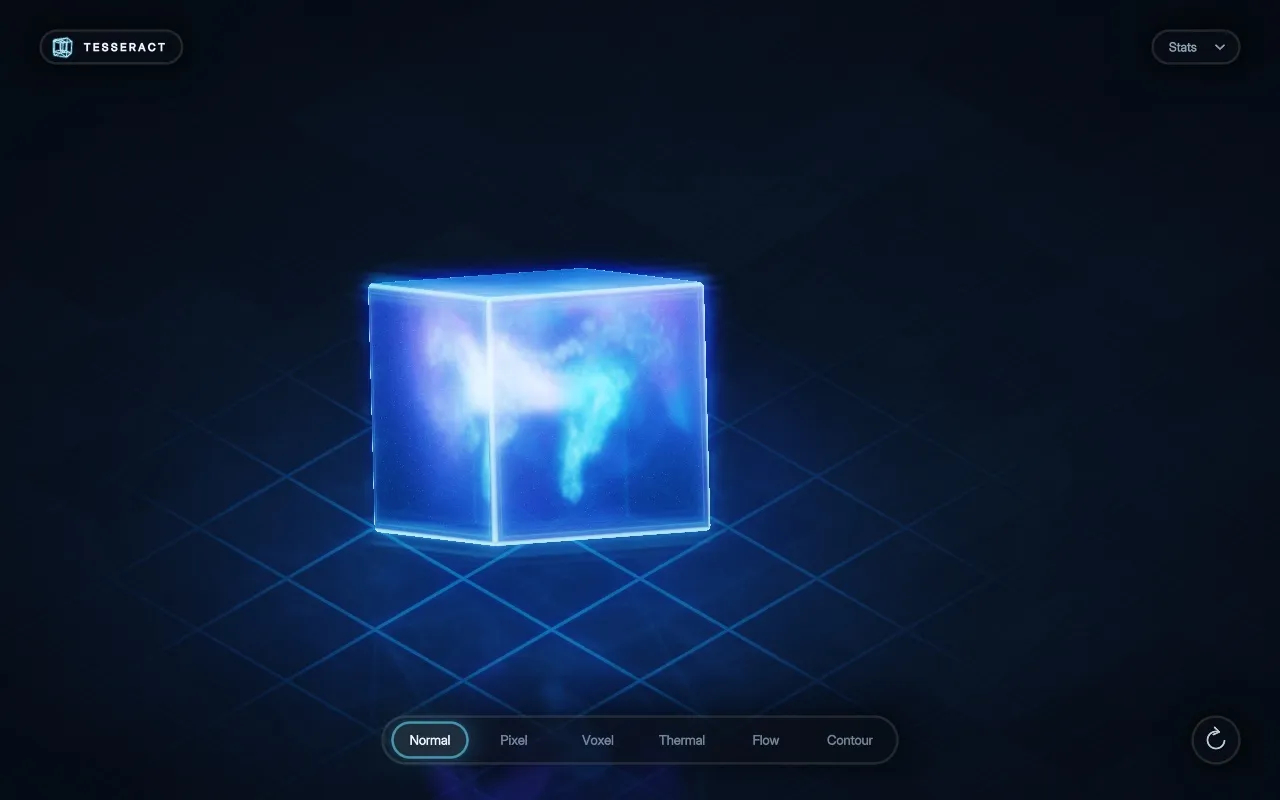
Rive files
Play the file and pin feedback to what you see. Drag the cube or switch its filters to try it.
Source changes and crashes show up next to the work.
Perforce and GitLab activity appears in the project feed. A new Sentry issue becomes a task.
See integrations


Perforce and GitLab
Changelists, reviews, pipelines, and releases land in the feed with the team's posts.
Sentry errors become tasks
Each new issue in a mapped Sentry project opens a task that links back to Sentry. Resolve the issue in Sentry and the task moves to Done.
Turn a comment on a level into a task.
Create a task from a comment on a file. The task links back to the post, so whoever picks it up can read the request in context. Assign it and set a due date.
How tasks workConnect source control, Steam, and Sentry.
Integrations are on Pro.
- PerforcePublish changelists, reviews, shelves, and builds into projects.
- SteamworksRead SteamPipe builds, branches, and depots for mapped apps. Project Feed never uploads builds or changes live branches.
- GitLabPublish pushes, merge requests, pipelines, and releases from GitLab.com into project feeds.
- GitHubShow commits and pull requests in project feeds, and sync issues with tasks.
- SentryNew Sentry issues become tasks that follow the issue's status.


